Corporate Headshot Background: Keep Your Team Consistent
Make every team headshot look like it was shot in the same studio. Use ImageFix batch edits to set a consistent corporate headshot background in minutes.

Your team page is doing that awkward thing where one person looks like they’re in a pro studio, another is in a car selfie, and someone else is lit by a kitchen ceiling fan. Nothing is “wrong” with those photos… but together, they scream “we didn’t plan this.”
If you want your company to look buttoned-up (without booking a photographer, wrangling calendars, or buying a physical backdrop), the fastest win is a consistent corporate headshot background across everyone.
In this tutorial, you’ll use ImageFix to batch-edit headshots so they look like they were taken on the same day, in the same studio, with the same backdrop. It takes minutes, not weeks.
Why a consistent corporate headshot background matters (a lot)
Headshots aren’t just “nice to have.” They’re trust signals.
When backgrounds, crops, and lighting are inconsistent, your brand looks:
- Patchy and unpolished
- Like a bunch of freelancers (even if you’re not)
- Less credible on LinkedIn, About pages, proposals, and press kits
When they’re consistent, you get the opposite:
- Instant professionalism
- Cleaner team pages
- Better first impressions for clients, candidates, and partners
The old options (and why they’re a pain)
You can absolutely do this the hard way:
- Book a photographer: great results, expensive, and scheduling is a nightmare
- Buy a physical backdrop + lights: cheaper, still time-consuming, still inconsistent across locations
- Photoshop everything: sure, if you enjoy suffering and own 47 layers
Or you can do the modern version: batch-edit with ImageFix.
What you’ll make in this tutorial
A set of headshots where:
- Everyone has the same neutral grey studio backdrop
- The crop and vibe look cohesive
- Results are LinkedIn-ready and team-page ready
Want a different look (white studio, soft blue gradient, office blur)? Same process. Just change the prompt.
Before and after examples (compact)
Here are six “real life” before-and-after pairs so you can see what “consistent team headshots” actually looks like.
Employee 1


Employee 2


Employee 3


Employee 4


Employee 5


Employee 6


Step-by-step: create a virtual corporate backdrop in ImageFix
This is the repeatable workflow you can use every time someone new joins your team.
Step 1: Upload or import headshots (Google Drive friendly)
In ImageFix:
- Click New Upload at the top.
- Select images from your computer, or import from Google Drive.
- Click Upload, then Proceed to Editor.
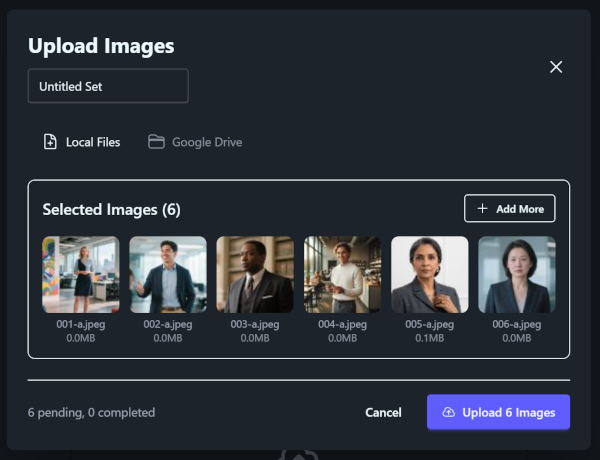
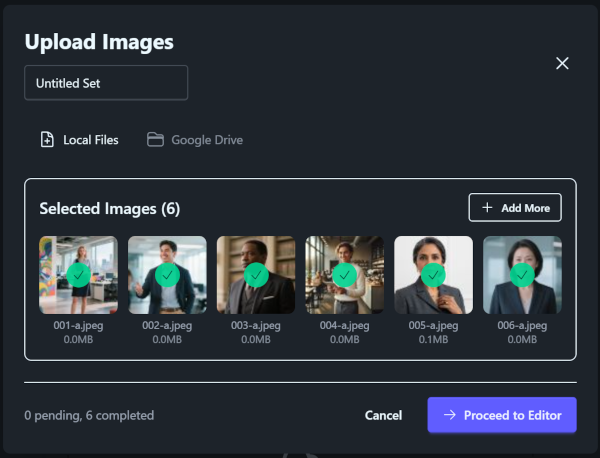
Pro tip: Don’t overthink the input photos. A decent phone photo is enough. We’re fixing the “random background” problem, fast.
Step 2: Open Describe Edit, then switch to Batch mode
- In the editor, click Describe Edit in the left sidebar.
- Click Batch in the upper left.
- Hit Select All to grab your whole team at once.
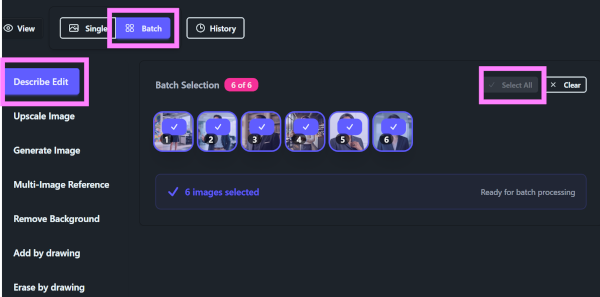
This is where the time savings happen. You set the look once, apply to everyone.
Step 3: Apply a consistent corporate headshot background (with a prompt you can reuse)
- (Optional) Check Create New Image so you don’t overwrite originals.
- Choose an AI model from the dropdown (example used in the plan: google/nano-banana, 4 credits per image).
- Paste this prompt (and tweak it for your brand style):
Prompt to copy:
A professional corporate headshot of the person in the input image, strictly preserving their facial identity and features. They are wearing formal business attire. They are smiling warmly. The background is a smooth neutral grey studio backdrop with a distinct, soft vignette fading to darker grey at the edges to center focus. The lighting is soft, high-quality, and professional
- Click Apply Describe Edit.
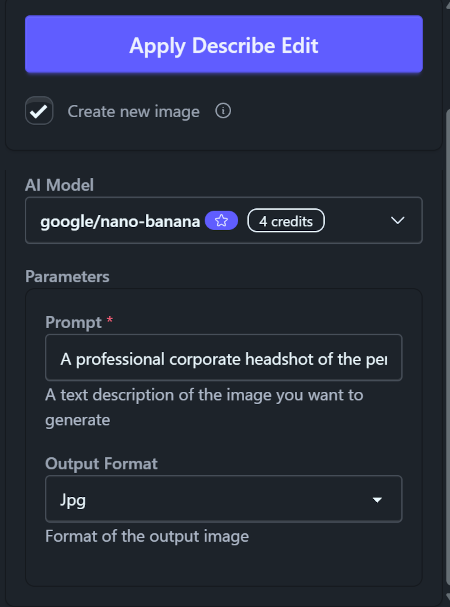
Consistency tip: Save your prompt somewhere (Notion, Google Doc, Slack draft). Use the exact same text every time to keep the vibe identical across new hires.
Step 4: Download or export all your new headshots
- Select the newly generated images.
- Click Download Selected (upper right).
- Download as a .zip or export to Google Drive.
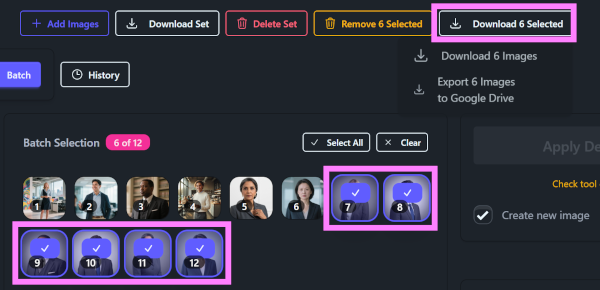
Now you’ve got a clean, uniform set of headshots ready for LinkedIn, your website team page, and anything sales touches.
Tips to keep headshots consistent (even if people are remote)
You can get 90 percent of the way there with ImageFix alone, but these small rules make the results even better:
1) Standardize the crop
Pick one:
- Shoulders + head (classic LinkedIn)
- Mid-chest + head (nice for website team grids)
Then keep it the same for everyone. Mixed crops look messy fast.
2) Keep the background choice boring (on purpose)
A neutral grey, soft gradient, or clean white reads “professional” and won’t clash with your site colors.
If you want personality, add it elsewhere (banner images, brand photography, office shots). Headshots should be simple.
3) Don’t let wardrobe derail you
You don’t need matching outfits, but you do want the same general level of formality.
- If leadership is in blazers and everyone else is in hoodies, it looks unbalanced.
- If you’re casual, be consistently casual.
4) Make this a process, not a project
The best time to fix “business headshot consistency” is before the team page turns into a collage.
When someone joins:
- Have them upload one decent photo
- Run your saved batch/prompt look
- Add to the team page the same day
Why ImageFix is the fastest way to get consistent team headshots
ImageFix is built for getting professional-looking images without the pro-studio headaches:
- AI background replacement with Describe Edit: create a studio-like corporate backdrop in seconds
- Batch editing: apply the same look across your team at once
- Google Drive import/export: easy for agencies and distributed teams
Most importantly: you get a repeatable system. Not a one-time cleanup.
CTA: make your headshots look like you hired a studio
If your team photos look like they were taken on six different planets, fix it today.
Try ImageFix free - 50 free credits, no credit card required. Use batch editing to create a consistent corporate headshot background for LinkedIn and your team page in minutes.